FREE ON EVERY PLAN · NO CARD NEEDED

Your seasonal sales playbook

Run Black Friday, Christmas and every festive season on your Wildfire storefront in 5 simple steps.

Create your free profile

5 steps to festive sales

Set it up once. Use it again every season.

  1. 1

    Create your free profile

    • Sign up on the web or the Android app.
    • No card, no trial, no time limit.

    Where: Get started free
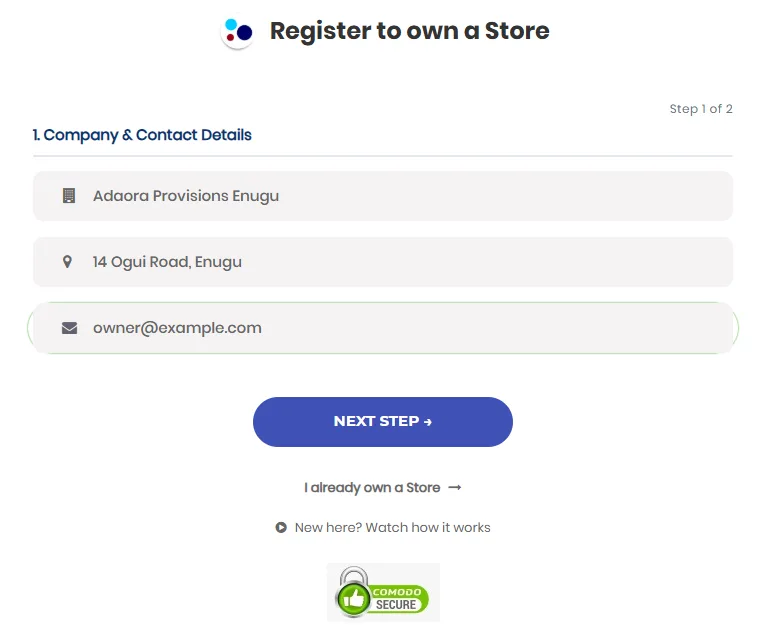
    The Register to own a Store form asking for business name, address and email
    Sign-up takes two short steps.
  2. 2

    Publish your Wildfire store

    • Add the items you want to sell, with a clear photo.
    • Connect Paystack or Flutterwave so customers can pay by card, transfer or USSD.
    • Link your WhatsApp number to receive orders.

    Where: your catalogue, then publish items to your storefront
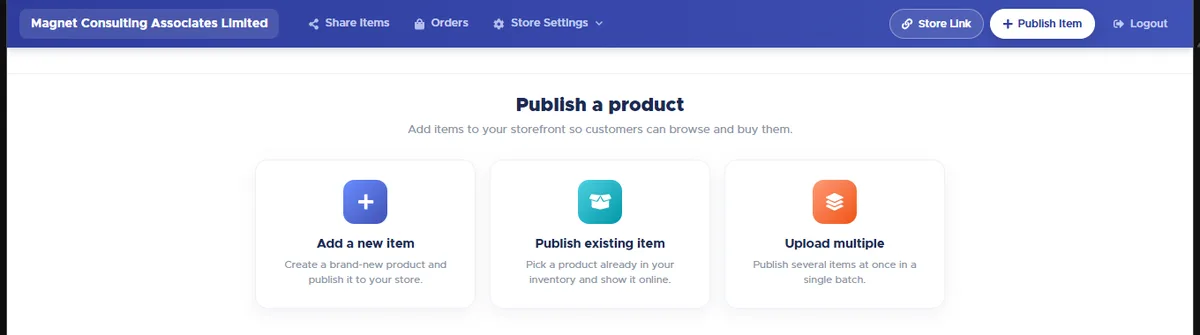
    Publish a product page with three choices: Add a new item, Publish existing item, Upload multiple
    Add one item, pick from your stock, or upload many at once.
  3. 3

    Get your customers ready

    • Share your store link and ask customers to tap Tell me when it's on sale. They get a text when your deal starts.
    • Buy SMS units and request your sender name early. Approval takes 1 to 3 working days.
    • Turn on Affiliate Marketing so your fans earn a commission for sharing your store.

    Where: Store Settings › Messaging, and Store Settings › Catalogue › Affiliate Marketing
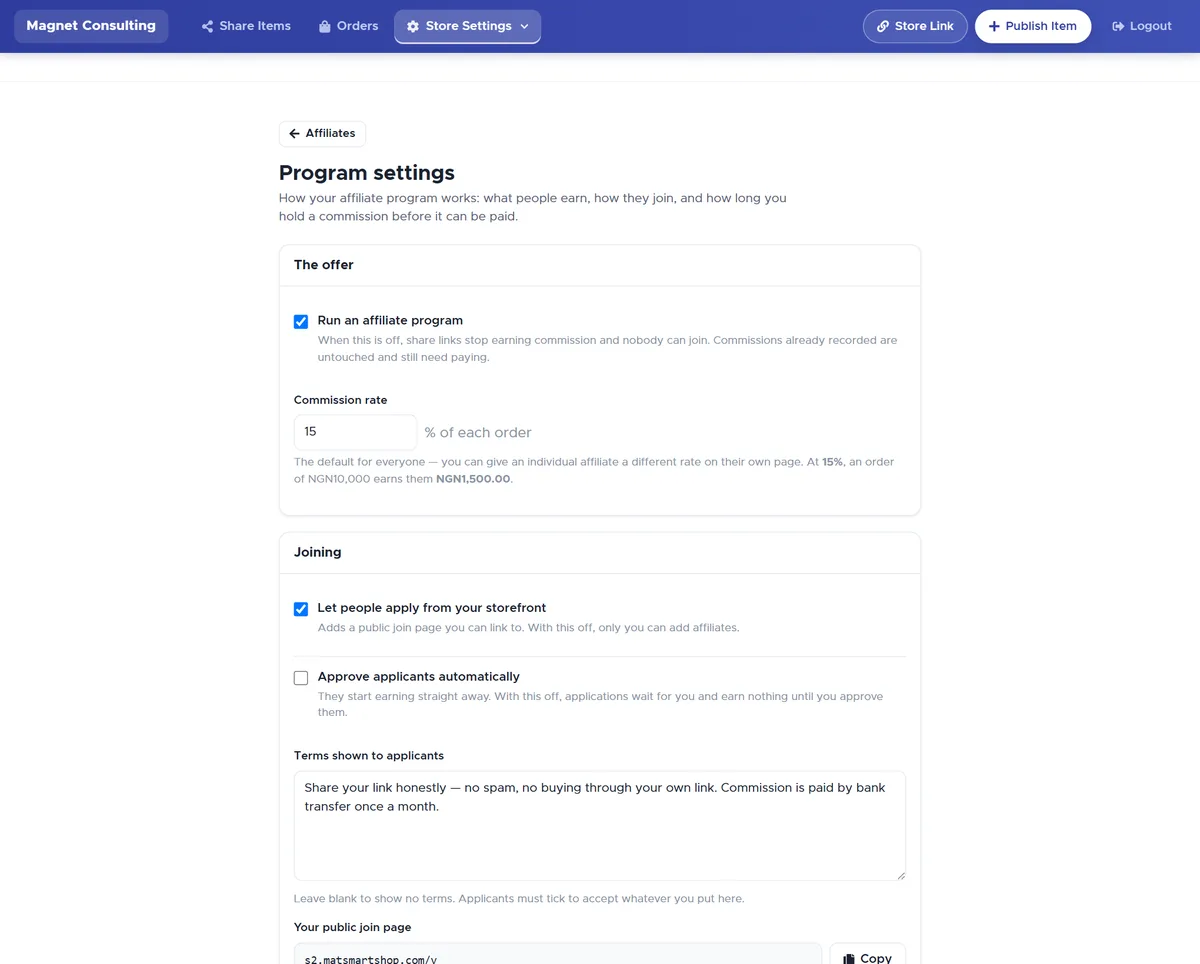
    Affiliate program settings with commission rate, joining options and payout rules
    Set the commission your fans earn for each order they bring.
  4. 4

    Create your offers and coupons

    • Choose a deal: % off, money off, new price, buy some get some free, or bundle price.
    • Set the start and end dates and switch on the countdown.
    • Create coupon codes. You can give each affiliate their own code.

    Where: Offers & Coupons › New offer, or New coupon
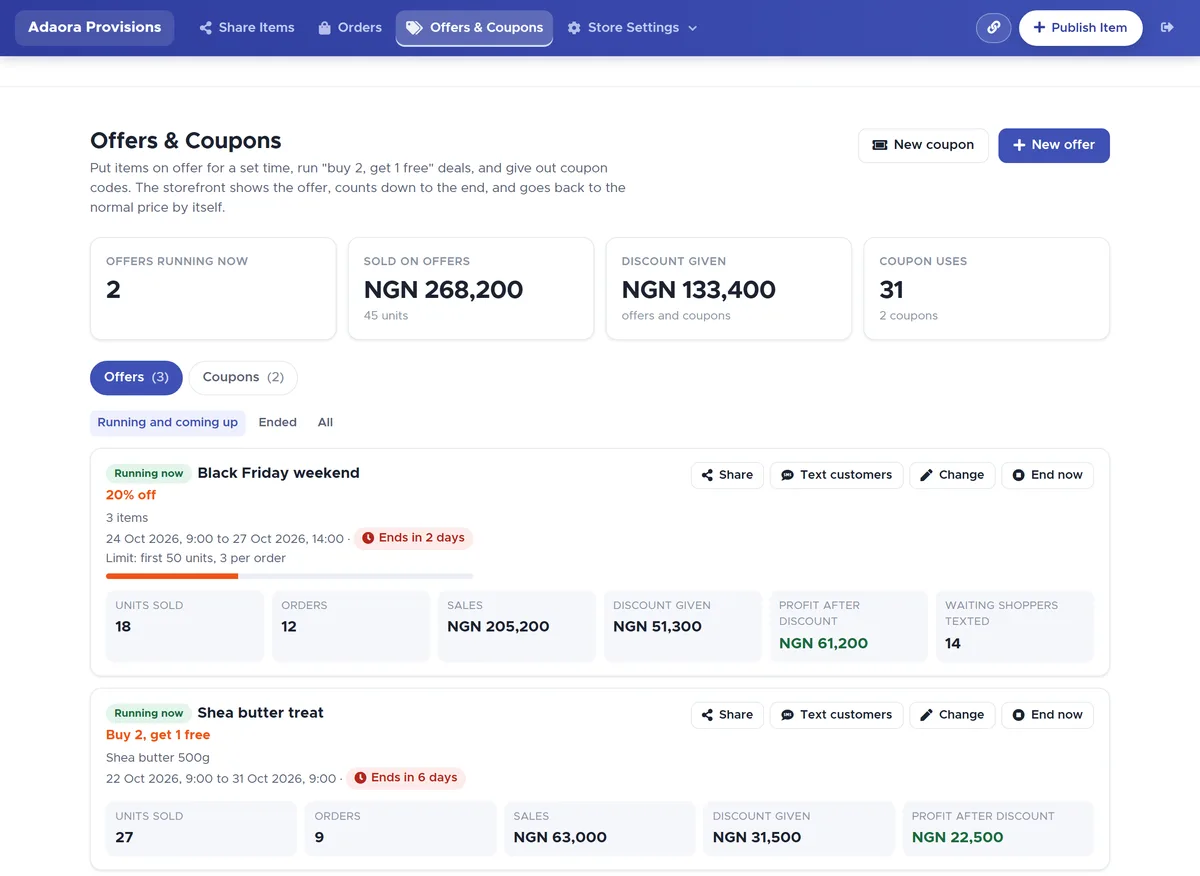
    The Offers & Coupons page showing a running Black Friday 20% off offer with a countdown, a buy 2 get 1 free deal, and totals for sales and discounts
    Each offer shows its countdown and how much it has sold, so you can see what is working.
  5. 5

    Launch, protect and follow up

    • Use Share and Text my customers to send your offer link and coupon codes.
    • Use Check Transfer Receipt before you release goods, so fake alerts don't cost you.
    • Let automatic messages bring buyers back after the season, then tap Run this offer again.

    Where: open your offer › Share or Text my customers
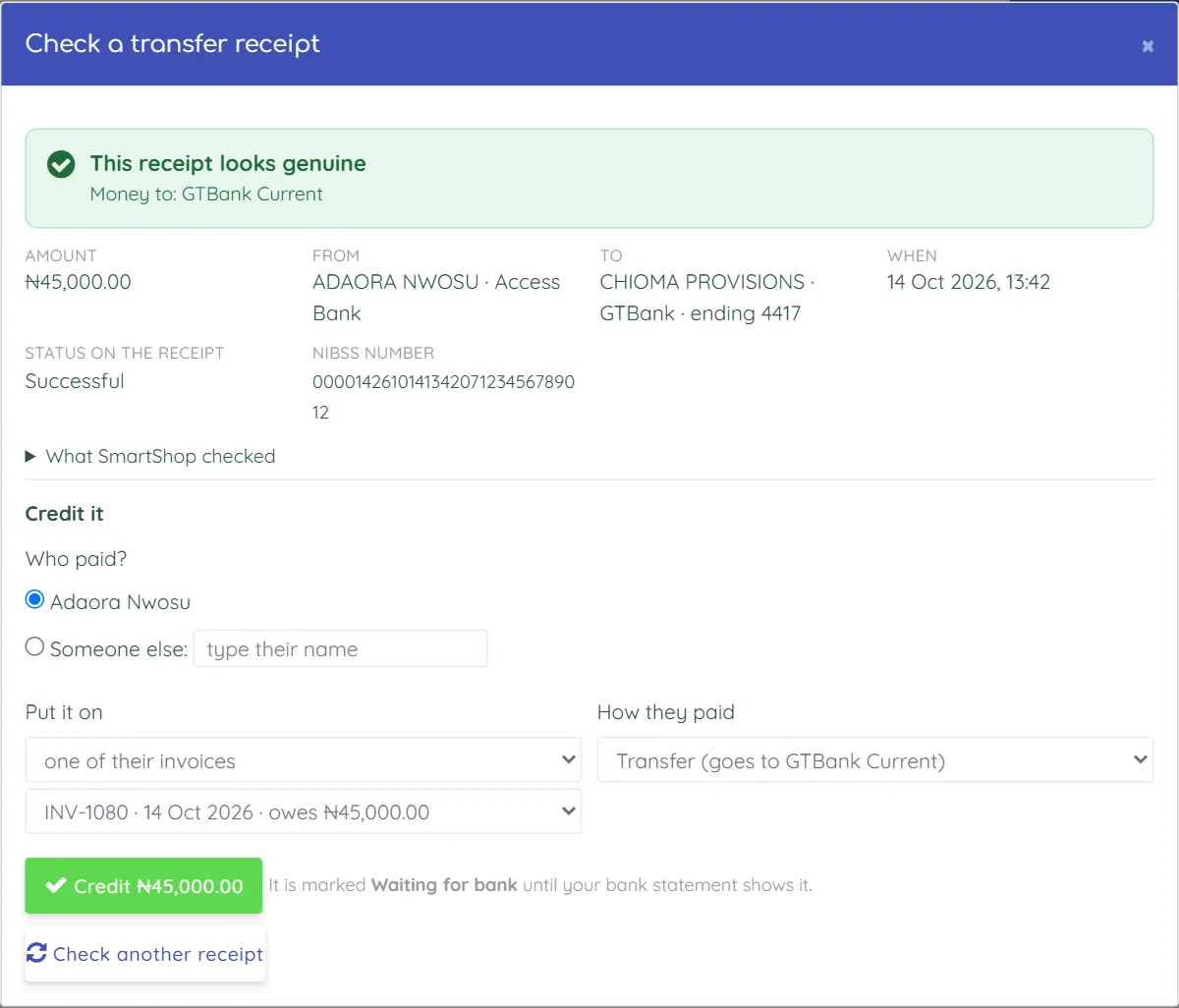
    Check a transfer receipt result showing This receipt looks genuine, with amount, sender and bank
    Check Transfer Receipt tells you if a payment alert is real before you hand over goods.

Key dates for this season

Start now so your store is ready before the rush.

20 NovStore live and first offer ready
27 NovBlack Friday
25 DecChristmas. Set an "order by" date for delivery

Quick checklist

Tick these off before your first offer goes live.

Questions

Does Wildfire cost anything?

No. Wildfire is free on Freemium and every paid plan, and you don't need a card to sign up. Text messages use SMS units, which you buy when you need them.

Will an offer change my normal prices?

No. An offer never changes the price saved on your item. When the offer ends, your store goes back to the normal price by itself.

Can I use this for other seasons?

Yes. Use the same store for New Year, Valentine's, Ramadan, Sallah, Easter and back-to-school. Just tap Run this offer again and change the dates.

Where can I learn more?

See the Merchant Storefront guide and the Knowledge Base.

Start your festive store today

Free on every plan. No credit card required.

Create your free profile