New Sale & Quotation, adding items, totals and discounts, and getting the invoice out the door.
Ringing up a sale end to end.
Open New Sale & Quotation, or the green + New Sale button in the top bar from anywhere.
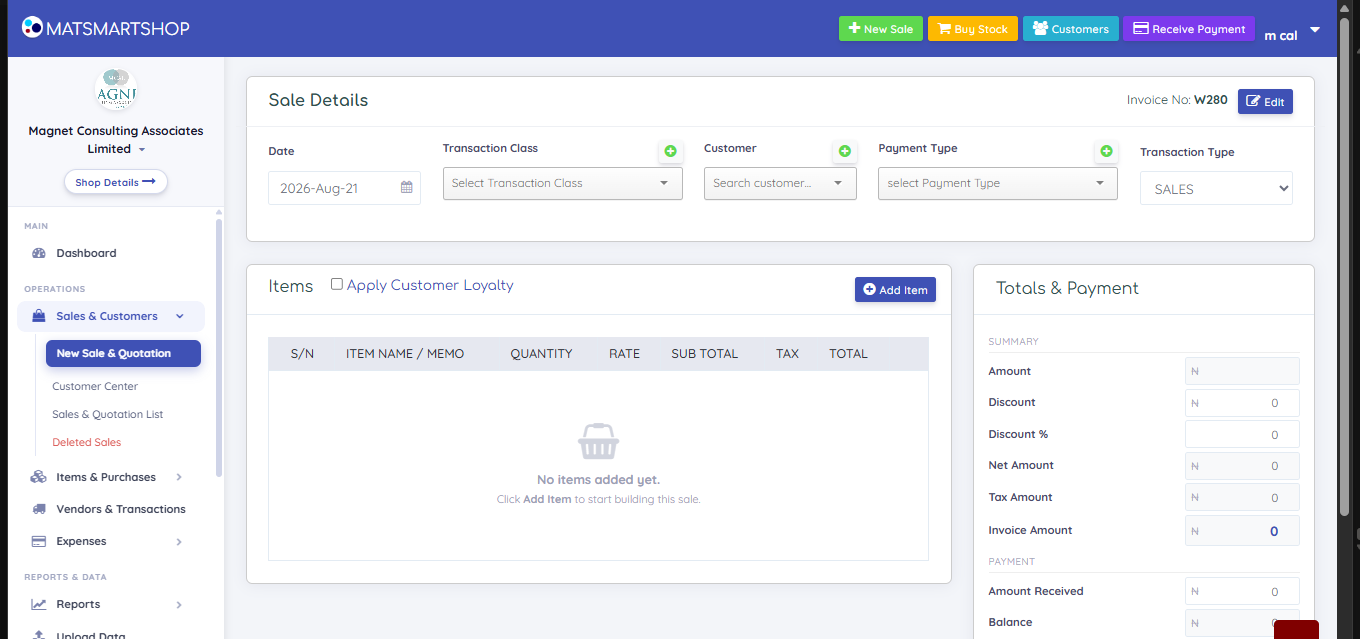
New Sale & Quotation — items on the left, totals pinned on the right.
Set the Date (defaults to today), Transaction Class, Customer and Payment Type.
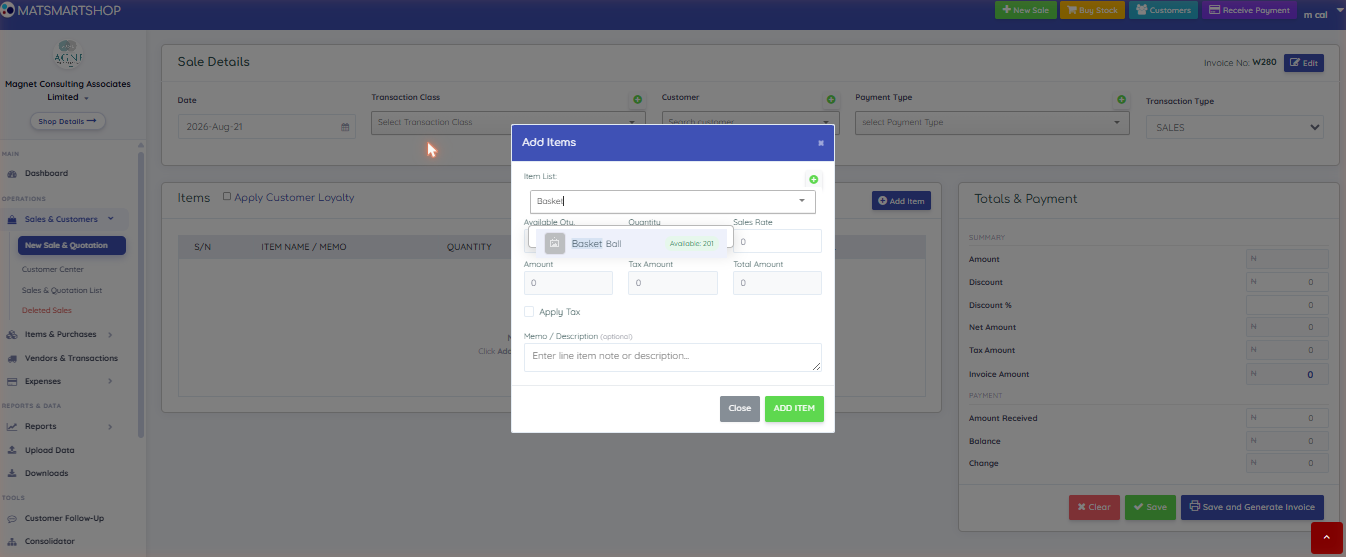
Click Add Item, search by name or code, set Quantity, tick Apply Tax if the line is taxable, then ADD ITEM. Repeat, then Close.
Apply a Discount or Discount %, or tick Apply Customer Loyalty to redeem points instead — it is either/or, never both.
Choose Save (records the sale), Save and Generate Invoice (records it and opens the invoice), or set Transaction Type to QUOTATION to save a quote with no stock movement and no balance created.
The item picker — photo and available quantity, so staff can confirm they grabbed the right product.
Pick the real customer for anything not fully paid. A credit sale left against a walk-in or cash customer is money you can no longer chase — it won’t appear in anyone’s balance, won’t show in Customer Center, and won’t be picked up by Customer Follow-Up.
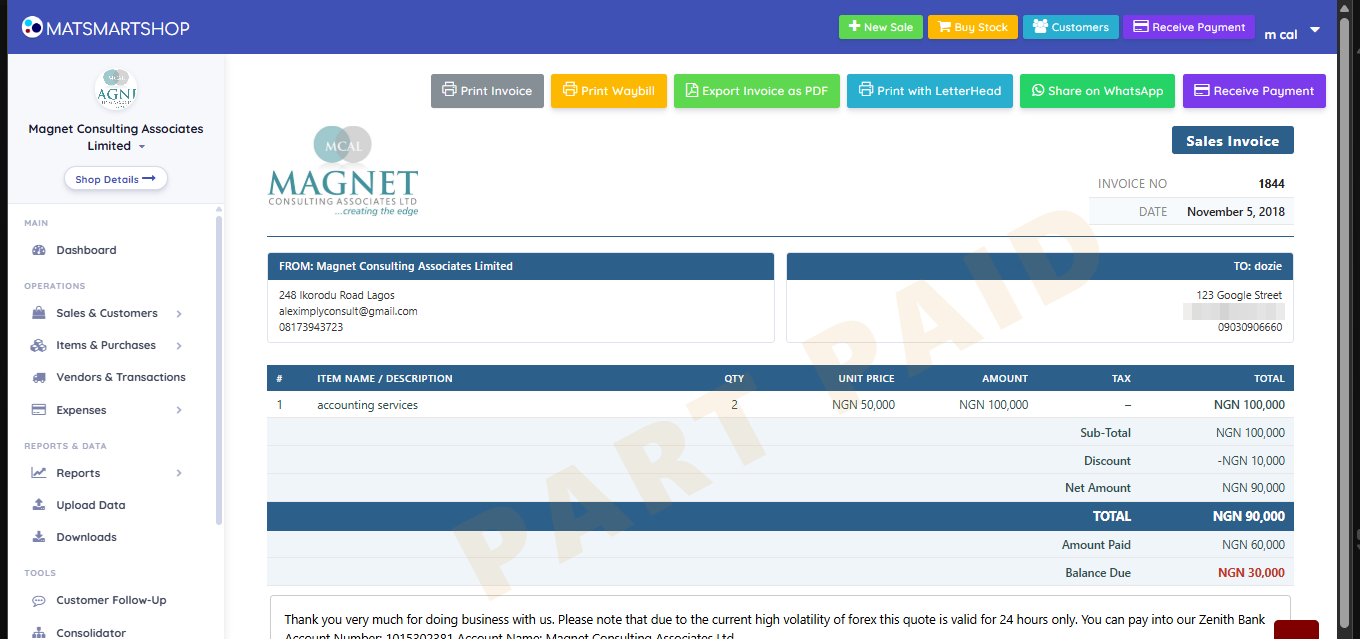
A part-paid invoice — the PART PAID stamp, amount paid and balance due.
The invoice carries a PAID / PART PAID / UNPAID stamp, spells out Total, Amount Paid and Balance Due, and can be printed, exported as PDF, printed with letterhead, or shared on WhatsApp.
There is no Payment Receipt button on the web invoice in this build. Use Save & Print Receipt in the Receive Payment dialog when you record the payment, or print a statement afterwards. The Android app does not have this gap — see "Sell fast with Quick Sell".
I want to…
Do this
Ring up a sale
+ New Sale → pick customer and payment type → Add Item → Save and Generate Invoice
Quote a price without selling
Same screen, Transaction Type = QUOTATION
Turn a quote into a sale
Sales & Quotation List → QUOTATION tab → convert
Take part payment now, rest later
Enter a smaller Amount Received; the balance follows the customer
If something looks wrong
A sale isn’t against the right customer — credit sales rung against a cash/walk-in customer can’t be chased. Delete and re-enter against the real customer.
Today’s cash doesn’t reconcile — check Deleted Sales, and check payment types; a transfer logged as cash creates exactly this gap.
Stock didn’t drop after a sale — quotations don’t move stock. Check whether it was saved as a quotation.
Share on WhatsApp now sends your customer a link to their invoice, with a Pay button while something is owed (on a phone it can attach the PDF instead). A note typed on an item line prints under the item on the invoice. See "The invoice link your customer opens".