An affiliate is anyone who promotes your online store and earns a share of what they bring in — a loyal customer, a friend with a big WhatsApp group, a market trader who sends people your way. Each one gets their own link. When somebody follows it and buys, Smart Shop records a commission for you to approve and pay. Nothing is paid automatically: you stay in control of every naira, and the affiliate sees exactly the same figures you do.
1. Where it lives
Affiliate Marketing is part of your online store (Wildfire), because that is where the links point and where the orders come from.
- Sign in to your Smart Shop web portal.
- In the left menu, under Tools, click Wildfire. Your online store's merchant area opens.
- In the blue bar at the top, click Store Settings, then Affiliate Marketing (under Catalogue).
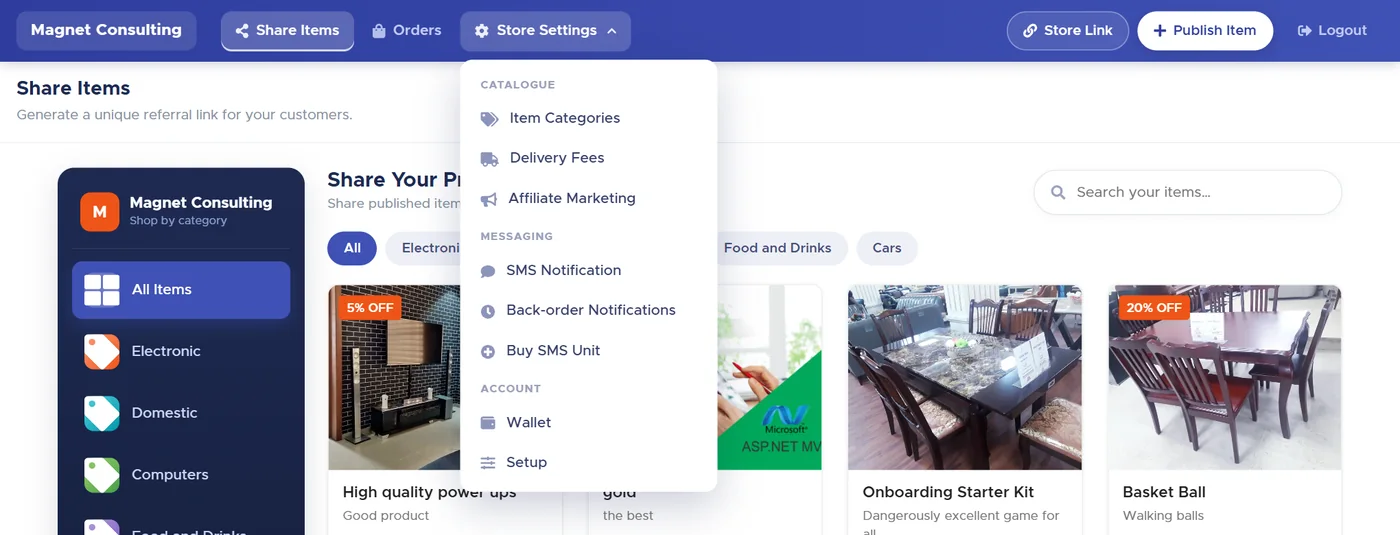
Four screens make up the feature, and every one of them has an Affiliates link at the top left that brings you back to the main page:
| Screen | What it is for |
|---|---|
| Affiliate Marketing | The main page: your totals, the list of affiliates, adding one, sharing their link. |
| Program settings | The rate, who can join, how long commissions are held before they can be paid. |
| Commissions | Every referred order in one list — approve, reject or reverse. |
| An affiliate's page | One person: their figures, their links, their rate, their commissions, and where you record what you paid them. |
2. Turning the program on — Program settings
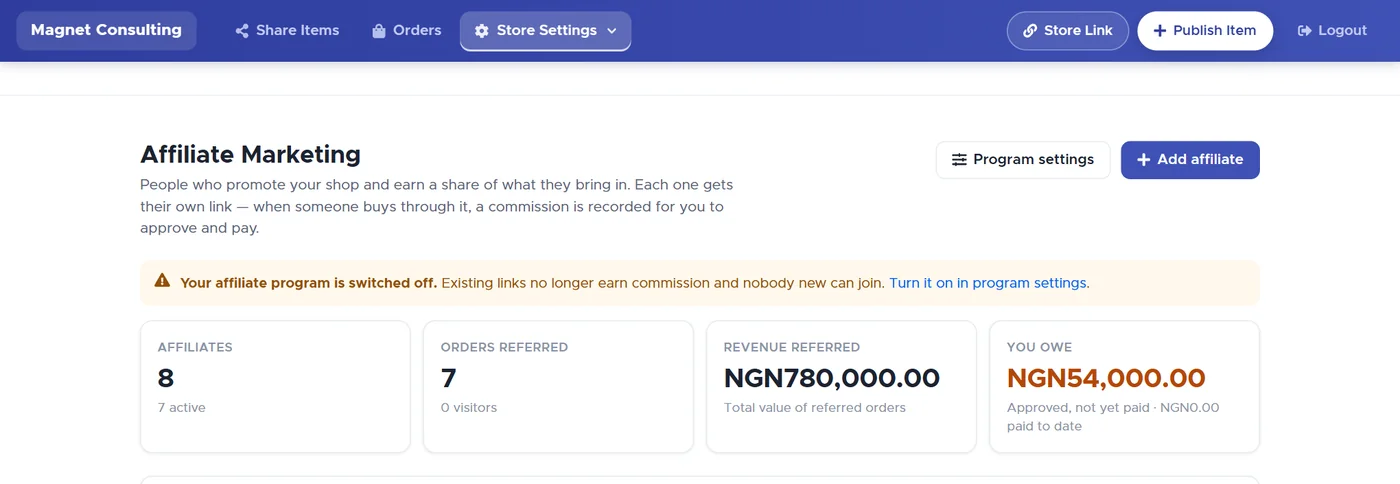
A new store starts with the program switched off. While it is off the main page shows an orange warning, no link earns commission and nobody can join. Click Program settings (top right of the main page, or the link inside the warning) to set it up.
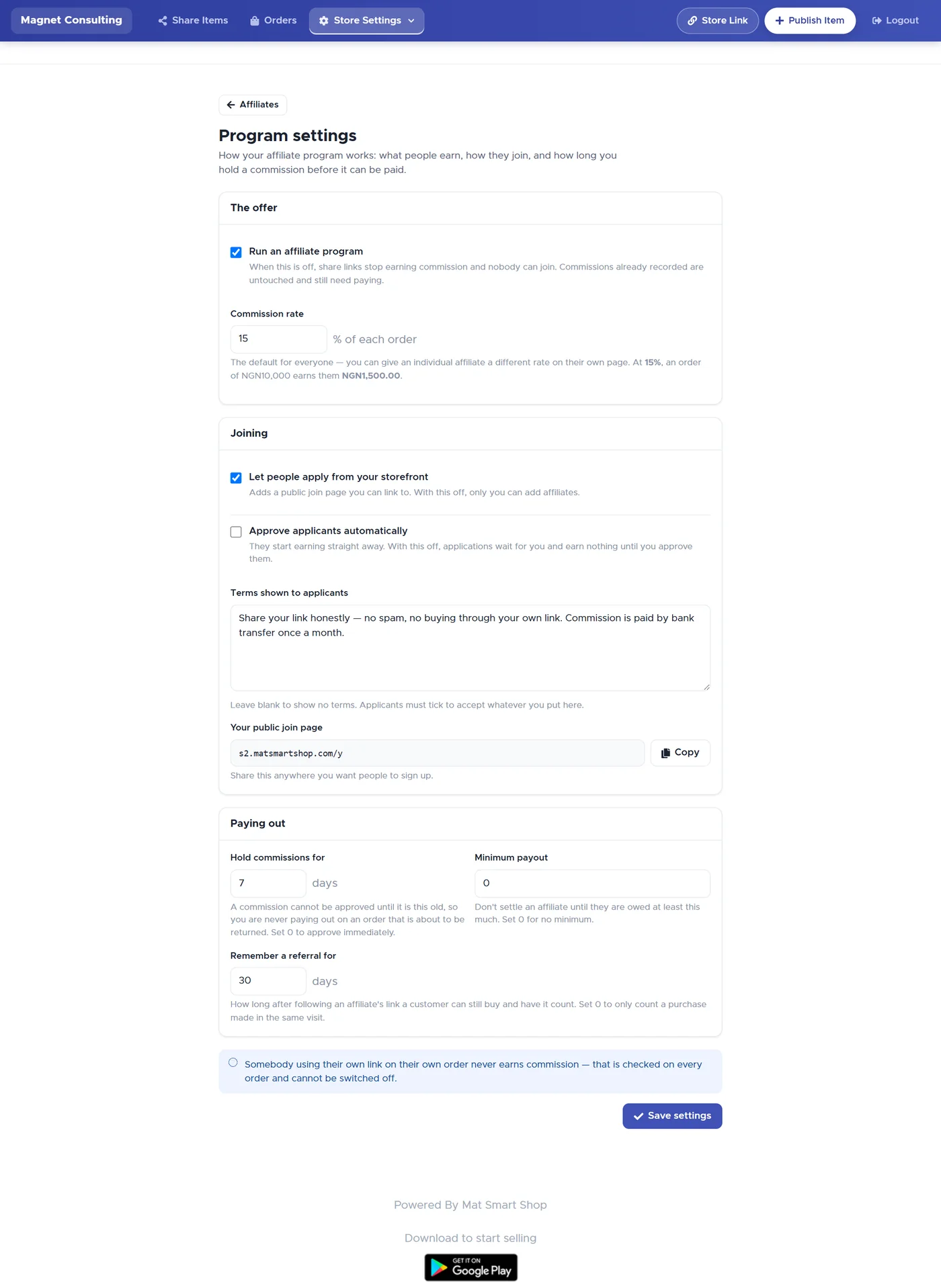
| Setting | What it does |
|---|---|
| Run an affiliate program | The master switch. Off = share links stop earning and nobody can join. Commissions already recorded are untouched and still need paying. |
| Commission rate | The default percentage of each order, for everyone. You can give an individual affiliate a different rate on their own page (section 9). At 15%, an order of ₦10,000 earns them ₦1,500. |
| Let people apply from your storefront | Adds a public join page (section 6) whose address appears below the switch. Off = only you can add affiliates. |
| Approve applicants automatically | On = anyone who applies starts earning straight away. Off = applications show as Awaiting on your list and earn nothing until you click Approve. |
| Terms shown to applicants | Free text. Applicants must tick to accept it before they can join. Leave blank to show no terms. |
| Hold commissions for … days | A commission cannot be approved until the order is this old, so you never pay out on something about to be returned. 0 = approve immediately. |
| Minimum payout | Don't settle an affiliate until they are owed at least this much. 0 = no minimum. |
| Remember a referral for … days | How long after following a link a visitor can still buy and have it count for that affiliate. 0 = only a purchase in the same visit counts. |
Click Save settings. The change applies at once — including to links already in people's hands.
3. The Affiliate Marketing page
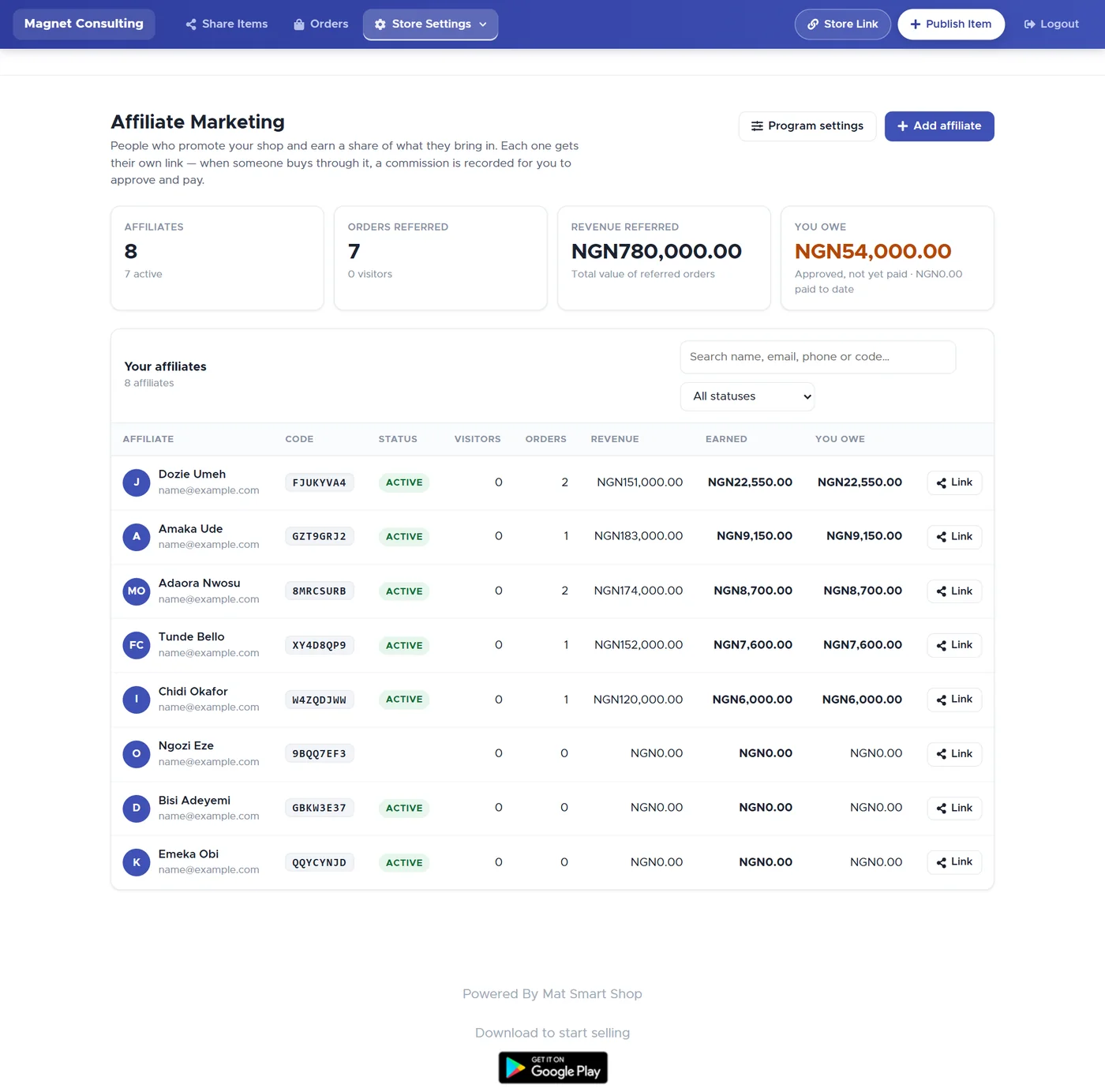
The four tiles
| Tile | What it counts |
|---|---|
| Affiliates | How many you have, how many are active, and how many are awaiting your approval. |
| Orders referred | Orders that came through any affiliate link, with the number of visitors the links sent and the share of them who bought. |
| Revenue referred | The total value of those orders — what the program has brought in. |
| You owe | Commission that is approved but not yet paid, with what you have paid to date underneath. This is the figure to act on. |
Commissions ready to approve
When any commission has cleared your hold window, a strip appears under the tiles: N commissions ready to approve — ₦X has cleared your 7-day hold window. Approve all approves them in one click; Review individually opens the Commissions page filtered to the pending ones (section 8). The strip disappears when there is nothing to do.
Your affiliates
| Column | Meaning |
|---|---|
| Affiliate | Name, with their email or phone underneath. Click the name to open their page. |
| Code | The 8-character code inside their link. Quote it when you talk to them about a specific order. |
| Status | Active (earning), Awaiting (applied, not yet approved — an Approve button sits on the row), or Suspended. |
| Visitors | People who followed their link. One person refreshing five times is one visitor. |
| Orders / Revenue | Orders placed through their link, and their total value. |
| Earned | Everything they have earned, paid or not. |
| You owe | Approved and still unpaid — the part that is actually due. |
| Link | Opens the share window (section 5). |
The search box matches name, email, phone or code as you type; the status dropdown narrows the list to one status.
4. Adding an affiliate yourself
Click Add affiliate (top right). This is the right route for someone you already know — a regular customer who keeps recommending you.
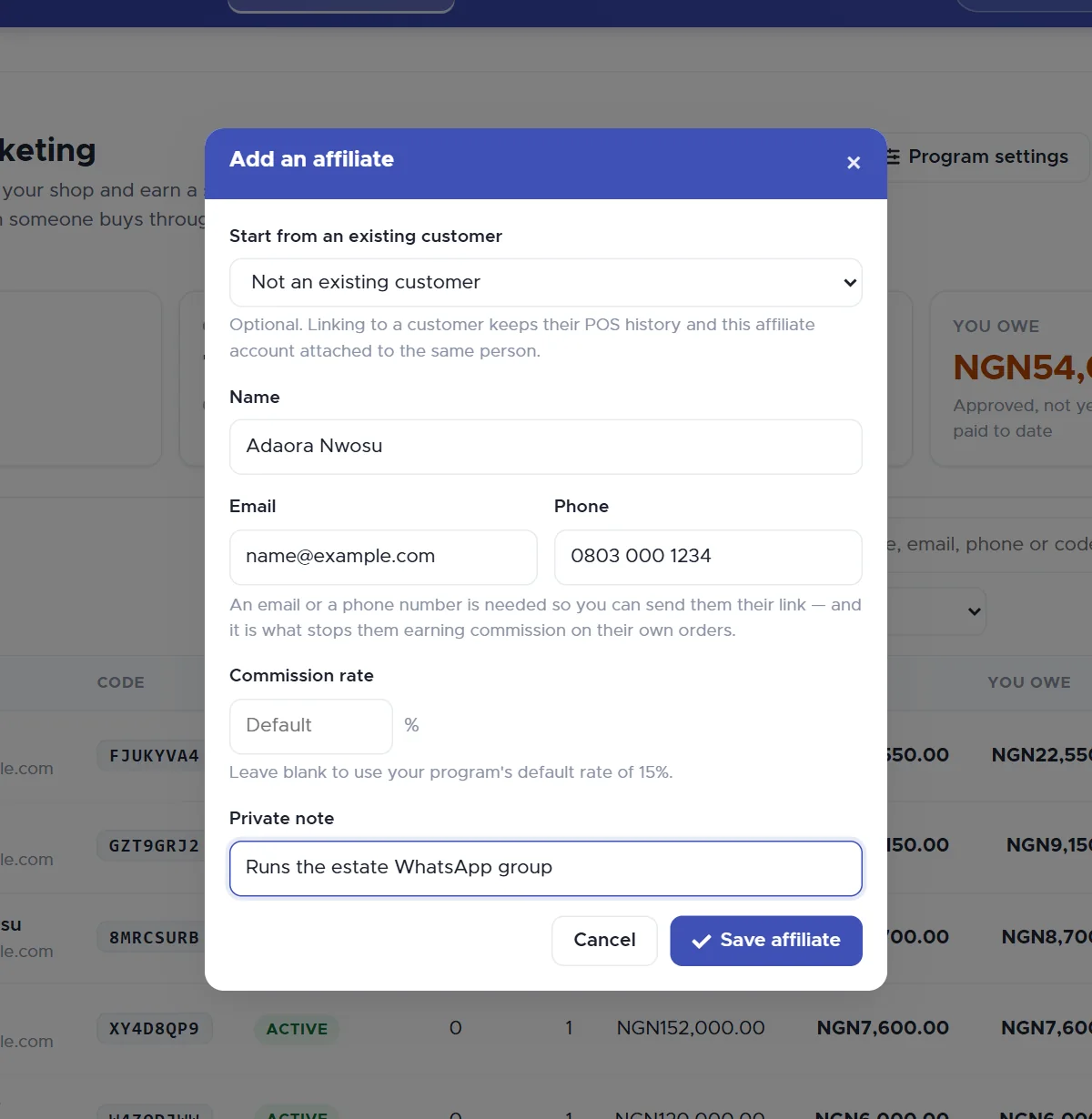
| Field | Notes |
|---|---|
| Start from an existing customer | Optional. Pick a customer and their name, email and phone fill in. Linking keeps their POS history and this affiliate account attached to the same person. |
| Name | Required. |
| Email / Phone | At least one. It is how you send them their link — and it is what stops them earning on their own orders. |
| Commission rate | Leave blank for the program default (the hint shows what that is). Type a number to give this person a different deal. |
| Private note | Only you see it, e.g. Runs the estate WhatsApp group. |
Click Save affiliate. They are Active immediately, and the share window opens straight away — that is the point of adding them.
5. Sharing their link
From the list, click Link on their row (or save a new affiliate). Two addresses appear, and they are not the same kind of thing.
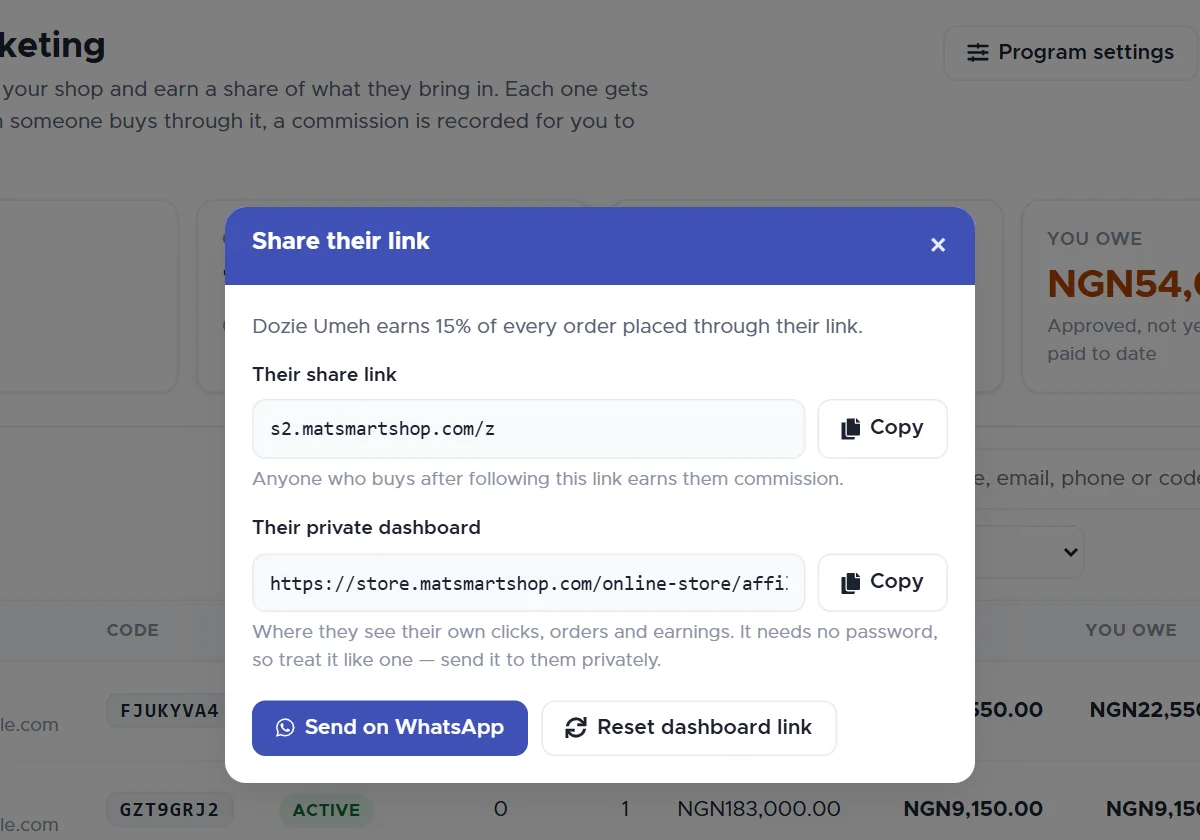
| Link | What it is | How to treat it |
|---|---|---|
| Their share link | Short. Anyone who follows it lands on your storefront, and anything they buy earns the affiliate commission. Made for WhatsApp, Facebook and X. | Public — the affiliate should post it everywhere. |
| Their private dashboard | Long, and deliberately not shortened. It opens the affiliate's own page: clicks, orders, earnings, payments received (section 11). | Treat it like a password. It needs no login, so anyone holding it sees their earnings. Send it privately, never post it. |
- Copy puts either address on your clipboard.
- Send on WhatsApp opens WhatsApp with a ready-written message containing both links, addressed to the affiliate by name. Pick their chat and send.
- Reset dashboard link — use this if the private link got out. The old link stops working immediately; their share link, code and earnings are not affected. You will need to send them the new one.
6. Letting people apply — the join page
Turn on Let people apply from your storefront in Program settings and a public join page exists. Its address appears under the switch with a Copy button; post it on your socials, print it on receipts, pin it in your shop. It shows your store name, the commission rate, your terms (if any), and asks for a name plus an email or phone.
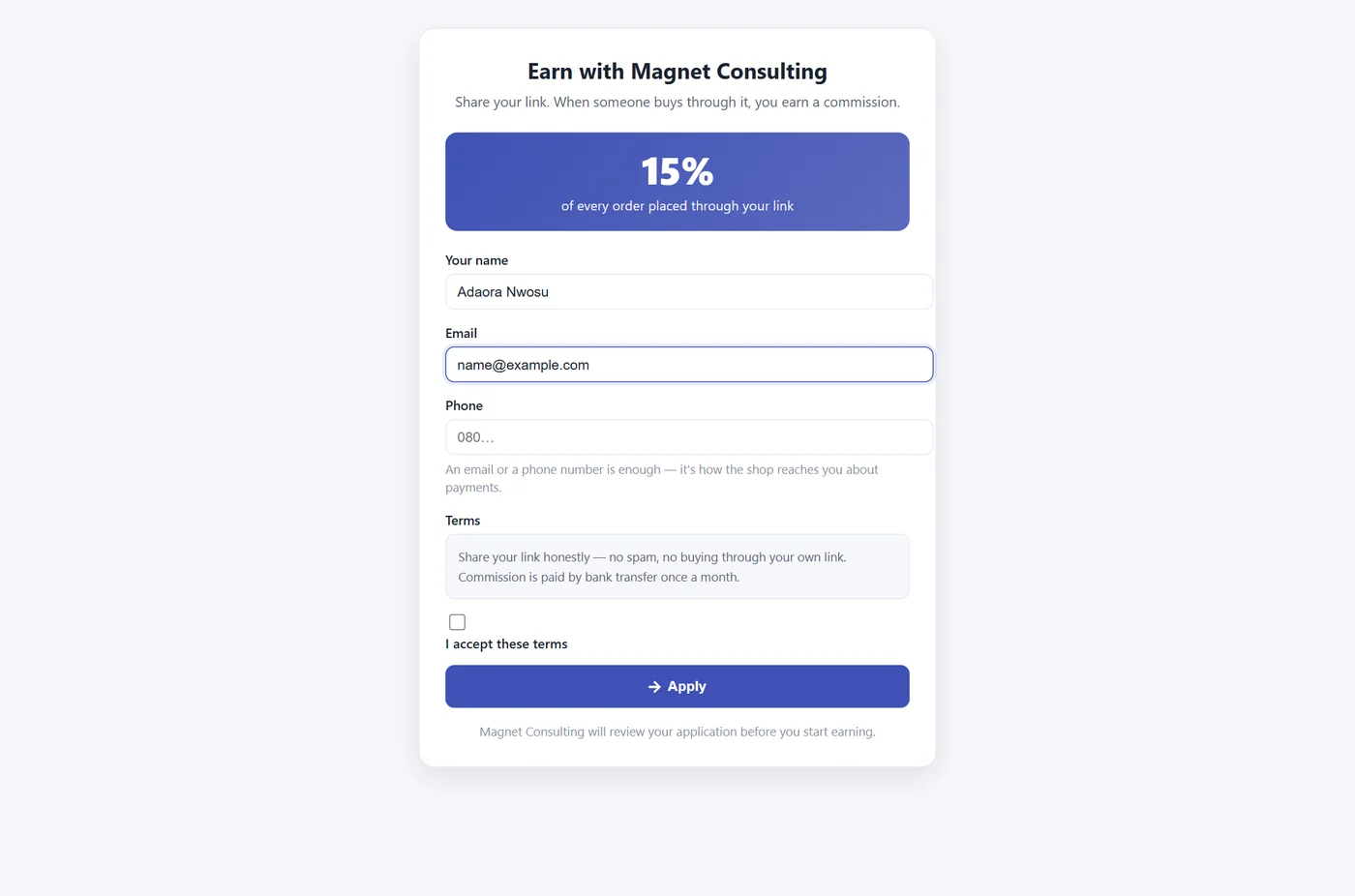
When they click Apply, their share link and their private dashboard link appear once, with a warning to save the dashboard address now because it is not shown again. If they lose it, you can resend it from their page.
What happens next depends on Approve applicants automatically:
- On — they are Active and earning from that moment.
- Off — they appear on your list as Awaiting. Their link already works, but no commission is recorded until you click Approve on their row (or on their page). Their dashboard tells them their application is being reviewed.
If the program is off, or self-signup is off, the page says Not accepting applications and shows no form — and the server refuses any application regardless, so an old link to the page cannot be used to sneak in.
7. How a referral is counted
This is worth understanding before you argue with an affiliate about an order.
- A visitor follows the share link. Smart Shop notes the affiliate's code on that visitor's browser for as many days as Remember a referral for says, records one click for the affiliate, and sends the visitor on to your storefront (or to the single item, if the link was to an item).
- The visitor browses, closes the tab, comes back the next day — the note survives all of that, up to the day limit.
- They place an order. Smart Shop checks the note, checks that the buyer's email and phone are not the affiliate's own, and records a commission: order value × the affiliate's rate, status Pending.
- The commission waits out your hold window, then becomes ready to approve. You approve it (section 8); it is now Approved and counted in You owe.
- You pay the affiliate however you normally pay people, and record it (section 10). The commission is Paid.
| Situation | What happens |
|---|---|
| Visitor followed two different affiliates' links | The most recent link wins — the last one is the one that actually persuaded them. |
| Affiliate orders through their own link | No commission, ever. Checked on every order by email and phone. |
| Program switched off | Links still open your shop, but no note is made and no commission is recorded. |
| A bad, old or reset code in a link | The visitor still reaches your shop; they simply arrive unattributed. A shopper is never punished for a broken link. |
| Link shared from the Android app's Share screen | Earns commission on orders, but is not counted as a click on the affiliate's visitor figures. |
8. Commissions — approving, rejecting and reversing
Store Settings → Affiliate Marketing → the Review individually link, or go straight to Commissions. Every referred order is here, with a filter for each status.
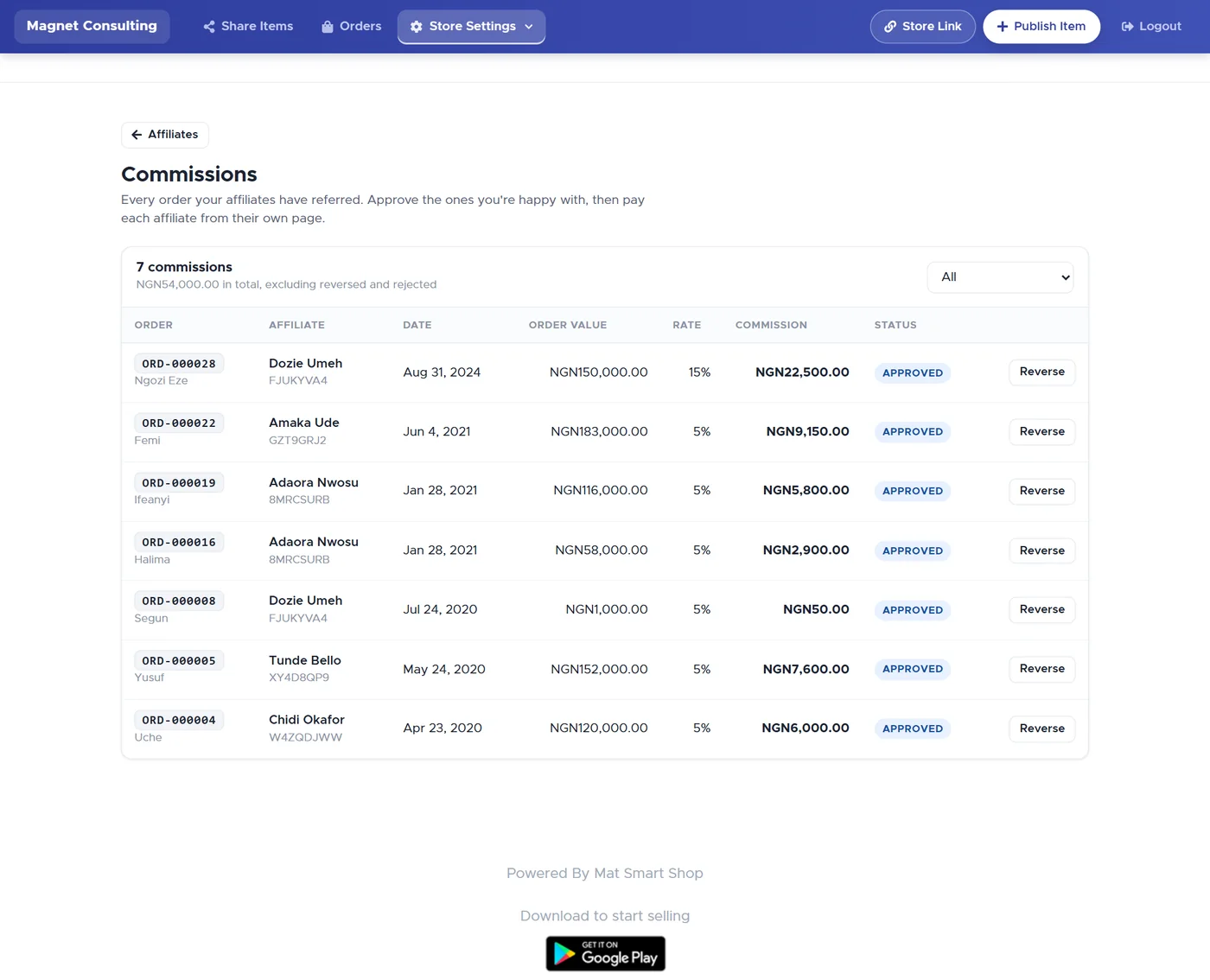
| Status | Meaning | Counts towards "You owe"? |
|---|---|---|
| Pending | Recorded, still inside the hold window (or waiting for you if the window is 0). | No — shown as "still being confirmed". |
| Approved | You have confirmed it. Owed to the affiliate. | Yes. |
| Paid | Settled — you recorded a payment covering it. | No (already paid). |
| Reversed | Was approved, then the order was refunded. Taken back. | No. |
| Not counted | Rejected before approval — the order did not go through, or should not earn. | No. |
The actions on a row follow the status:
- Approve — on a Pending row that has cleared the hold window. Approve all ready at the top does every eligible row at once.
- Reject — on a Pending row. Use it when the order never really happened (cancelled, never paid, a test). It becomes Not counted.
- Reverse — on an Approved row. Use it when an order you already approved is refunded. It becomes Reversed and leaves You owe.
Paid is final. A paid commission cannot be reversed here; settle a refund with the affiliate directly.
The total at the top of the page ("₦54,000.00 in total, excluding reversed and rejected") is everything that counts, paid or not — it is not the amount you owe. That figure is the You owe tile on the main page.
9. An affiliate's own page
Click a name on the main list.
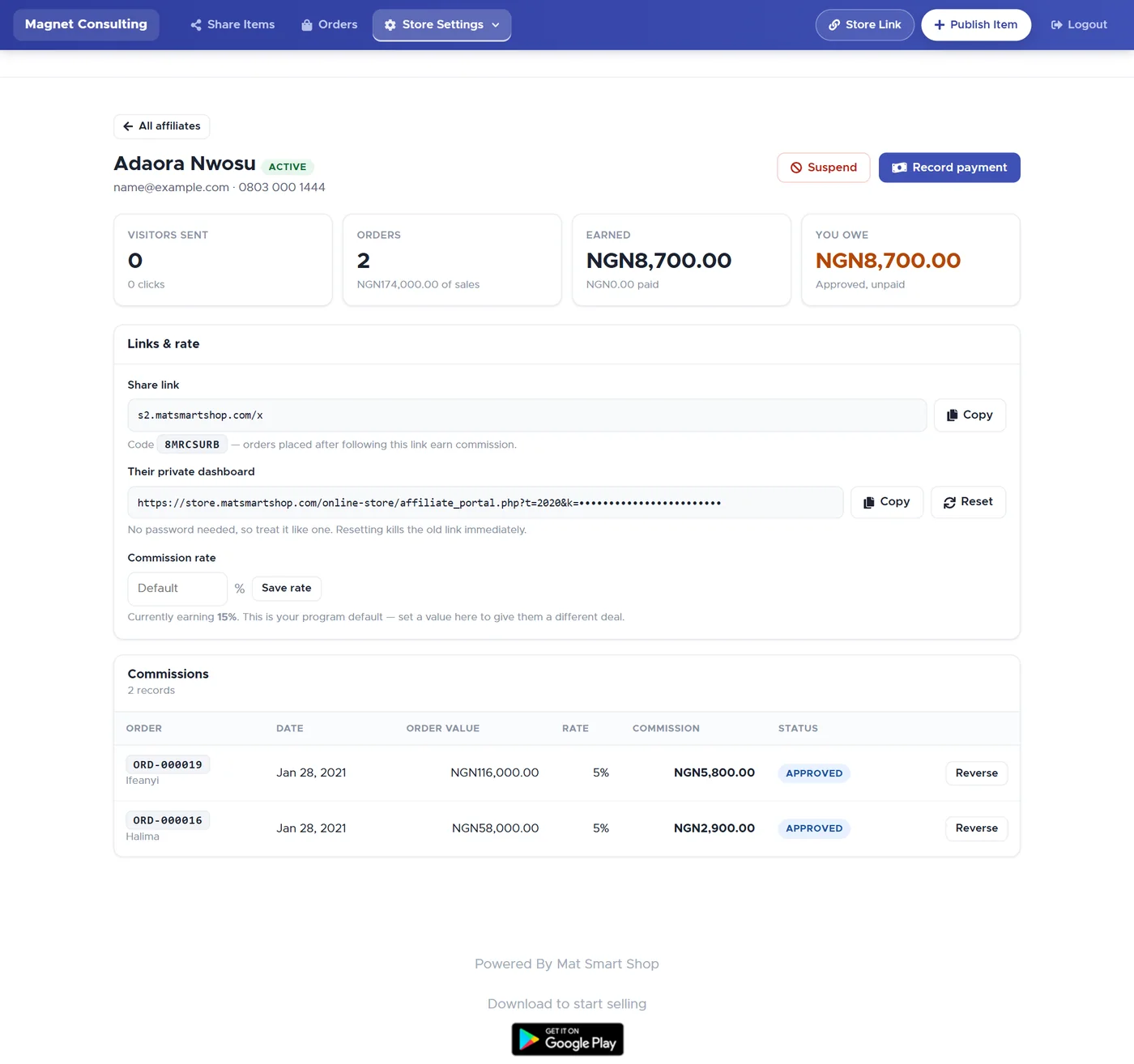
- Visitors sent / Orders / Earned / You owe — the same four ideas as the main page, for this person only.
- Share link and their private dashboard, each with Copy; Reset next to the dashboard link does what section 5 describes.
- Commission rate — blank means the program default (the line underneath says what they currently earn). Type a rate and Save rate to give this person a different deal. It applies to orders from now on; recorded commissions keep the rate they were made at.
- Commissions — this affiliate's rows, with the same Approve / Reject / Reverse actions as section 8.
- Suspend (top right) — stops new orders through their link earning anything. Approved commission stays owed. The button becomes Reinstate. Use it rather than deleting someone; nothing here can be deleted, because money has been recorded against it.
10. Paying an affiliate — Record a payment
Smart Shop does not move money. You pay the affiliate the way you pay anyone — bank transfer, cash, mobile money, or as store credit — then record it, so the two of you have the same record and their commissions are marked as settled.
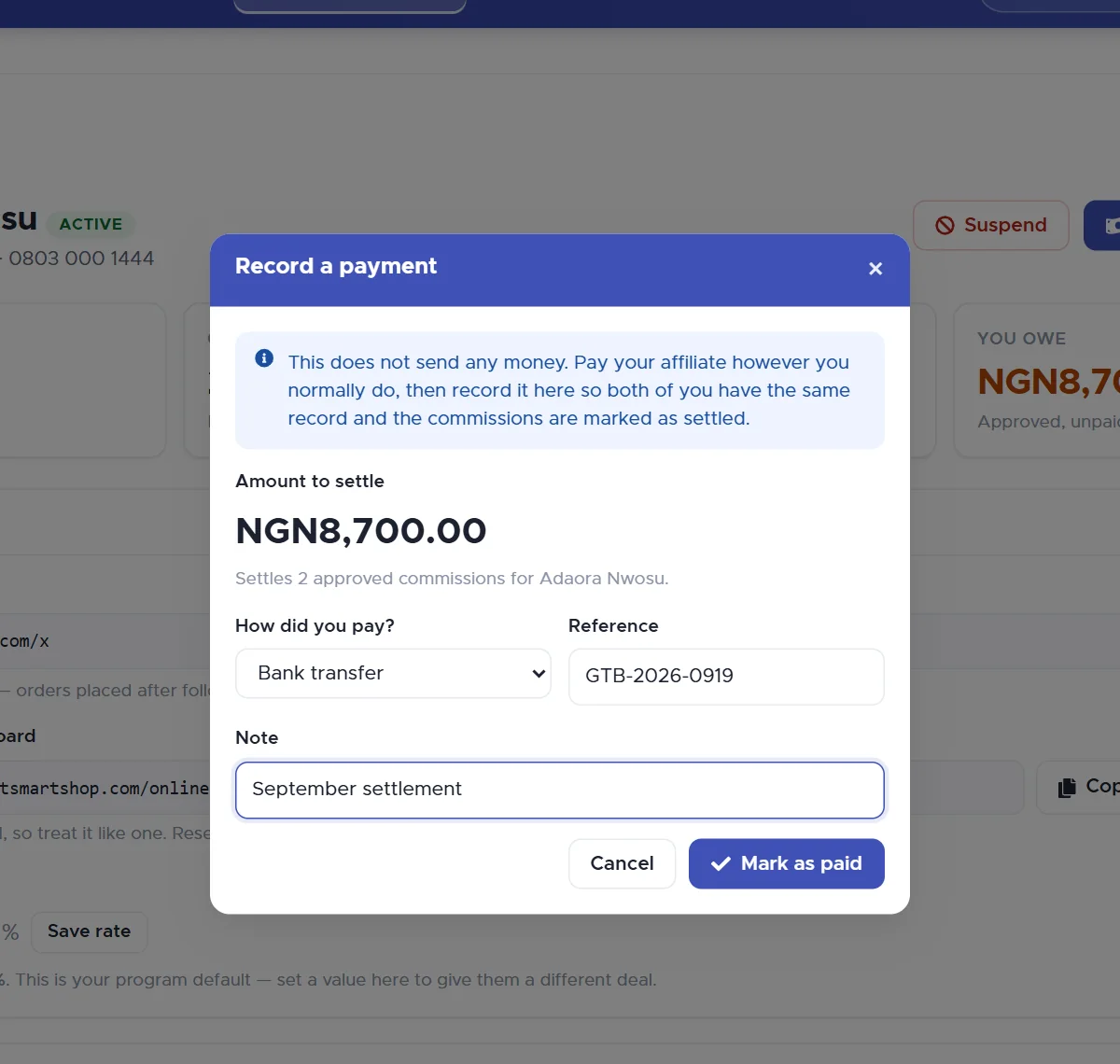
- On the affiliate's page, click Record payment. The amount is pre-filled with everything approved and unpaid for this person; change it if you paid a different sum.
- Choose How did you pay? — Bank transfer, Cash, Mobile money, Store credit or Other — and add a Reference (the transfer reference, receipt number) and a Note if you want.
- Click Mark as paid.
The oldest approved commissions are marked Paid up to the amount you entered, You owe drops by that amount, paid to date rises by it, and the payment appears on the affiliate's dashboard under Payments you have received with the method and reference you typed.
11. What your affiliate sees
Their private dashboard link opens this page. No account, no password: the link is their identity, which is why it must stay private.
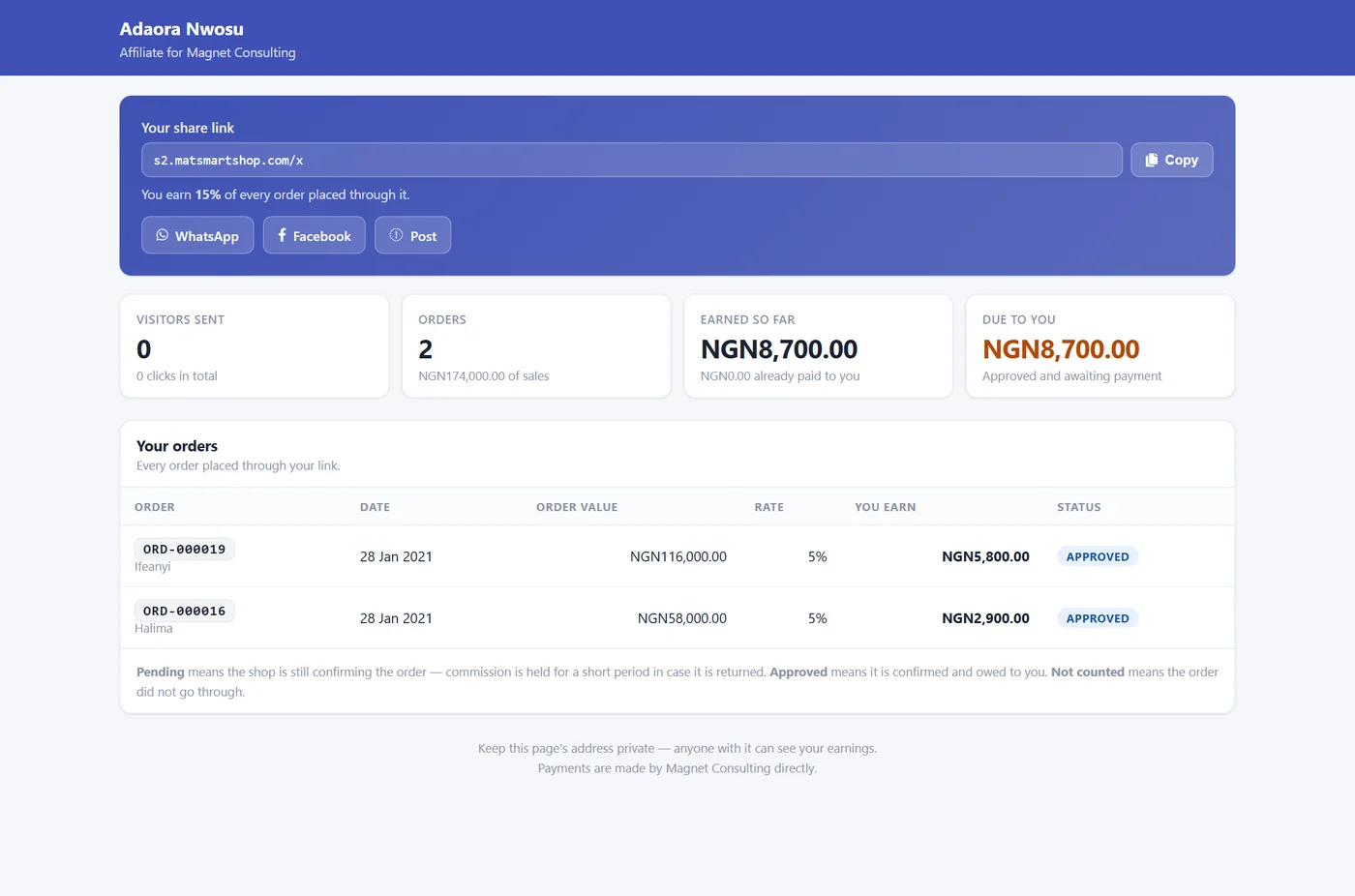
- Your share link, with one-tap WhatsApp / Facebook / Post buttons, and the rate they earn.
- Visitors sent, Orders, Earned so far, Due to you — the same numbers you see for them, including "still being confirmed" (pending) and "already paid to you".
- Your orders — order number, buyer's first name, date, value, rate, what they earn, status. The page explains Pending, Approved and Not counted in their words.
- Payments you have received — every payment you recorded, with date, method, reference and amount.
They never see the buyer's contact details — an affiliate is owed a commission, not given a customer list. If their application is still awaiting approval, or their account is suspended, the page says so at the top and tells them their link still works (awaiting) or that new orders will not earn (suspended).
A link that has been reset, or copied short, shows This link is not valid and tells them to ask you for it again.
12. Things to know
- Commission is cash, not store credit. It never appears as spendable balance at your till. Store credit is one of the ways you can choose to record a payment, but that is your arrangement with them.
- Changing the program rate changes what new orders earn for everyone on the default. Affiliates with their own rate keep it. Commissions already recorded keep the rate they were made at.
- Switching the program off does not cancel what you owe. Approved commissions stay approved and still need paying.
- The join page is public. Anyone with the address can apply; keep auto-approval off if you want to vet people first.
- Nobody gets an email from Smart Shop about their link, their approval or their payment. Send the link yourself (WhatsApp button), and tell them when you pay — their dashboard will show it.
- Affiliates cannot be deleted, only suspended, because commissions and payments are recorded against them.
13. Quick reference
| I want to… | Where |
|---|---|
| Start the program / change the rate | Affiliate Marketing → Program settings → Run an affiliate program, Commission rate → Save settings |
| Add someone I know | Affiliate Marketing → Add affiliate → Save affiliate → send the links |
| Let people sign up themselves | Program settings → Let people apply from your storefront → copy the join page address |
| Approve an applicant | Their row (Awaiting) → Approve |
| Resend someone's links | Their row → Link → Copy or Send on WhatsApp |
| Approve commissions | The "ready to approve" strip → Approve all, or Commissions → Approve per row |
| Take back a commission after a refund | Commissions → Reverse (approved) or Reject (pending) |
| Pay someone | Their page → Record payment → amount, method, reference → Mark as paid |
| Give one person a better rate | Their page → Commission rate → Save rate |
| Stop someone earning | Their page → Suspend |
| Someone's dashboard link leaked | Their page → Reset (or Link → Reset dashboard link), then send the new one |