This guide covers the ACCOUNT section of the left menu — My Usage, Invite & Earn and Renew Subscription (or Upgrade) — together with Downloads and the Knowledge Base.
1. The plans
| Plan | How you pay | What it adds |
|---|---|---|
| Freemium | No subscription. A monthly allowance of usage units, topped up on the 1st. | The full shop: sales, invoices, quotations, customers, stock, purchases, expenses, reports, the Android app, the Wildfire storefront, Customer Follow-Up. Metered actions use units. |
| Basic | Monthly, or 3, 6 or 12 months ahead at a lower monthly rate. | Income and expense tracking, profit and loss, quick invoices and quotations, credit sales and purchases, inventory levels, real-time reports — with metered actions unlimited. |
| Premium (recommended) | Monthly, or 3, 6 or 12 months ahead. | Everything in Basic, plus customer incentives and loyalty, referral marketing and customer referral rewards, the virtual storefront and online ordering, social-media and WhatsApp ordering, and converting orders to invoices. |
| Business (Desktop Plus App) | 6 or 12 months up front; no monthly term. | Everything in Premium, plus the Windows desktop till — works fully offline, barcode scanners, thermal and Bluetooth receipt printers, up to 8 sales points. |
Prices are per store, shown in Naira or US Dollars (toggle at the top of the plans page), and paying further ahead costs less per month. Current prices are always on the plans page.
The Consolidator (several stores in one view) is covered in its own manual.
2. Usage units, in plain terms
A usage unit is the small change you spend on metered actions. Units come from three places, and are spent in this order:
Because monthly units are spent first, units you buy or earn are kept in reserve for the months you need more.
3. My Usage — reading your balance
Left menu → ACCOUNT → My Usage.
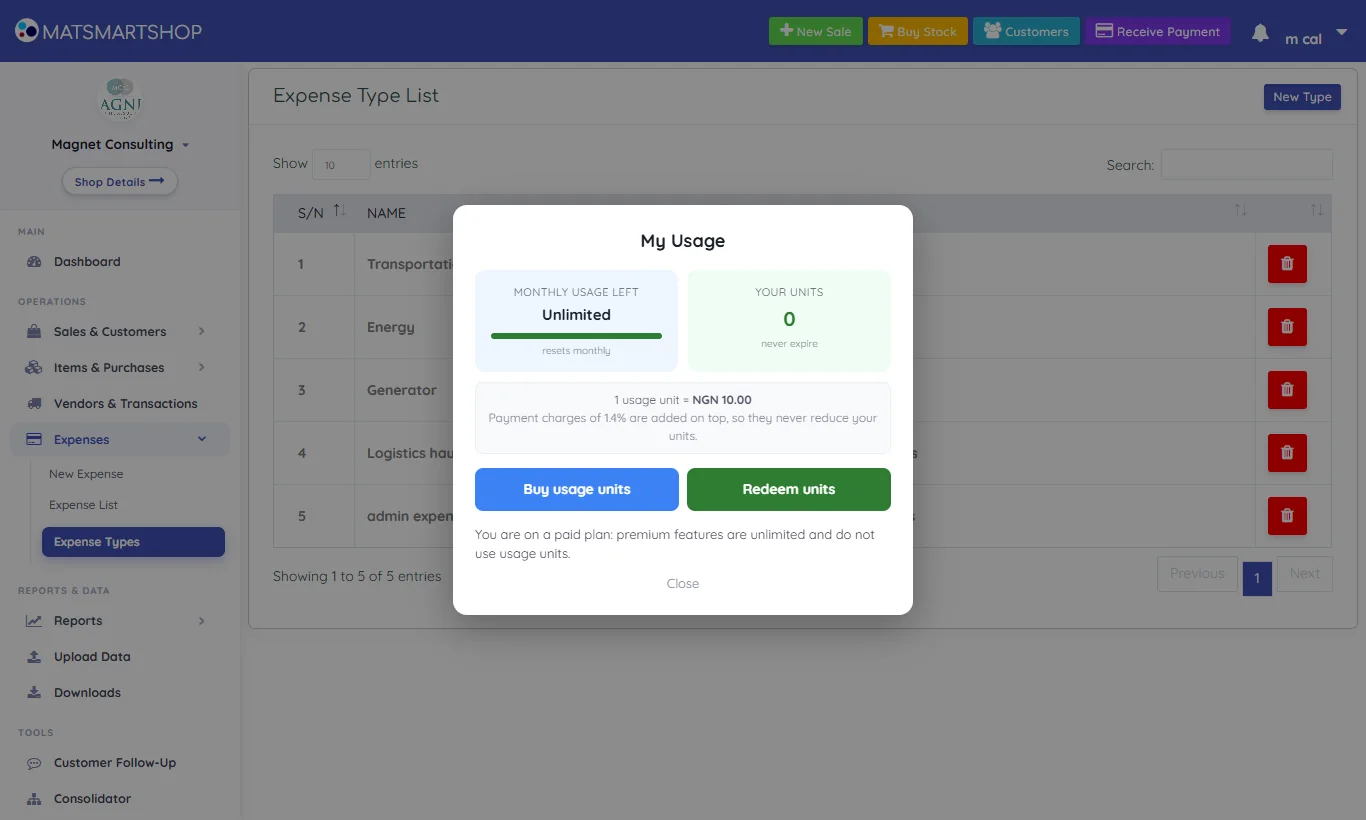
| Line | Meaning |
|---|---|
| Monthly usage left (resets monthly) | How much of this month's allowance remains, shown as a percentage — "38% left" tells you where you stand without needing to know what a unit buys. It turns red at 20% or below. |
| Your units (never expire) | Units you've bought or earned, as a number. |
| Rate line | What one unit costs in your currency (e.g. 1 usage unit = NGN 10.00). Payment charges are added on top of your purchase, so they never reduce the units you receive. |
| Buy usage units | Top up with a card, transfer or USSD (section 4). |
| Redeem units | Swap units for days of paid subscription (section 5). |
If you're on a paid plan, Monthly Usage Left reads Unlimited and the dialog says so: "You are on a paid plan: premium features are unlimited and do not use usage units."
If you've just moved from a paid plan to Freemium, it tells you the date your free monthly units begin (section 9).
4. Buying usage units
- My Usage → Buy usage units.
- In How much do you want to spend? type an amount in your currency. The dialog shows the current rate (e.g. 1 usage unit = NGN 10.00) and how many units that buys, plus the exact amount you'll be charged including the payment processor's fee.
- Continue to payment. A secure checkout opens — pay by card, bank transfer or USSD.
- When payment completes you're returned to MAT Smart Shop and the units appear under Your units.
| Message | Meaning |
|---|---|
| That is not enough for one usage unit. | Enter a larger amount. |
| Buying usage units is unavailable right now / Online payment is not switched on yet | Payments are temporarily closed, or no rate is set for your currency. Nothing is charged. Contact support. |
| Your session has expired | Sign in again and retry. |
5. Redeeming units for subscription days
Earned or bought units can be turned into days of paid subscription — a way to try a paid plan, or extend one, without paying cash.
- My Usage → Redeem units.
- "How many subscription days do you want to redeem with your usage units?" — enter the number of days. The cost in units per day is shown.
- Confirm. If you don't have enough, you'll see "Not enough usage units for that many days."
While those days last, your store is on a paid plan: metered actions stop using units until the days run out.
6. When units run low, or run out
6.1 Running low
After a metered action, if your monthly allowance has dropped to 20% or less, a gentle prompt appears — "Your usage is running low" — with "You can still work. Top up now so nothing stops mid-sale." Choose an option or Remind me later. It won't nag you again for a while. The daily low-usage notification in the bell says the same (see the Notifications Manual).
6.2 Run out
When a metered action is refused, you'll see "You have run out of usage" — "This feature needs usage units. Choose any of the options below to carry on." — with three ways out:
| Option | Good when… |
|---|---|
| Buy usage units — pay by card, transfer or USSD | You need the action right now. |
| Invite a shop and earn free units | You know another business owner who'd benefit. |
| Upgrade to a paid plan — unlimited premium features, no units needed | You hit the limit most months — a subscription is then cheaper and simpler. |
Nothing else is affected: you can keep selling, receiving payments and managing stock while you decide.
7. Invite & Earn
Left menu → ACCOUNT → Invite & Earn.
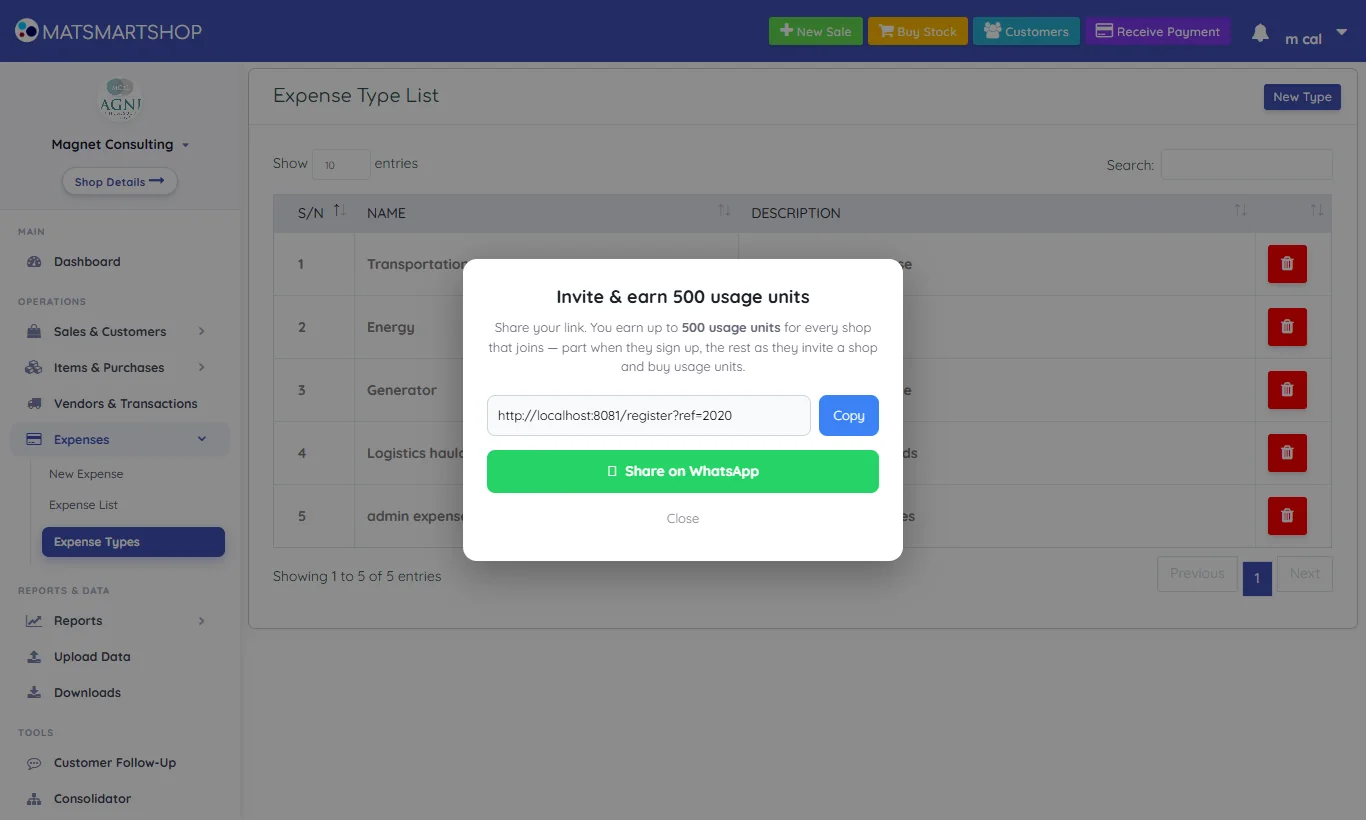
- You get a personal invite link. Share on WhatsApp opens WhatsApp with a ready-written message; the copy button copies the link to paste anywhere else.
- You earn up to 500 usage units for every shop that joins through your link — part when they sign up, and the rest as they go on to invite a shop and buy usage units themselves.
- Earned units go to Your units and never expire. On a paid plan, they can be redeemed for extra subscription days (section 5).
Once a week, if no shop has joined through your link that week, the Dashboard may show a short reminder offering the same share buttons.
8. Subscribing, renewing and upgrading
Left menu → ACCOUNT → Renew Subscription (on Freemium the same entry invites you to upgrade), or Profile Settings → Renew Subscription.
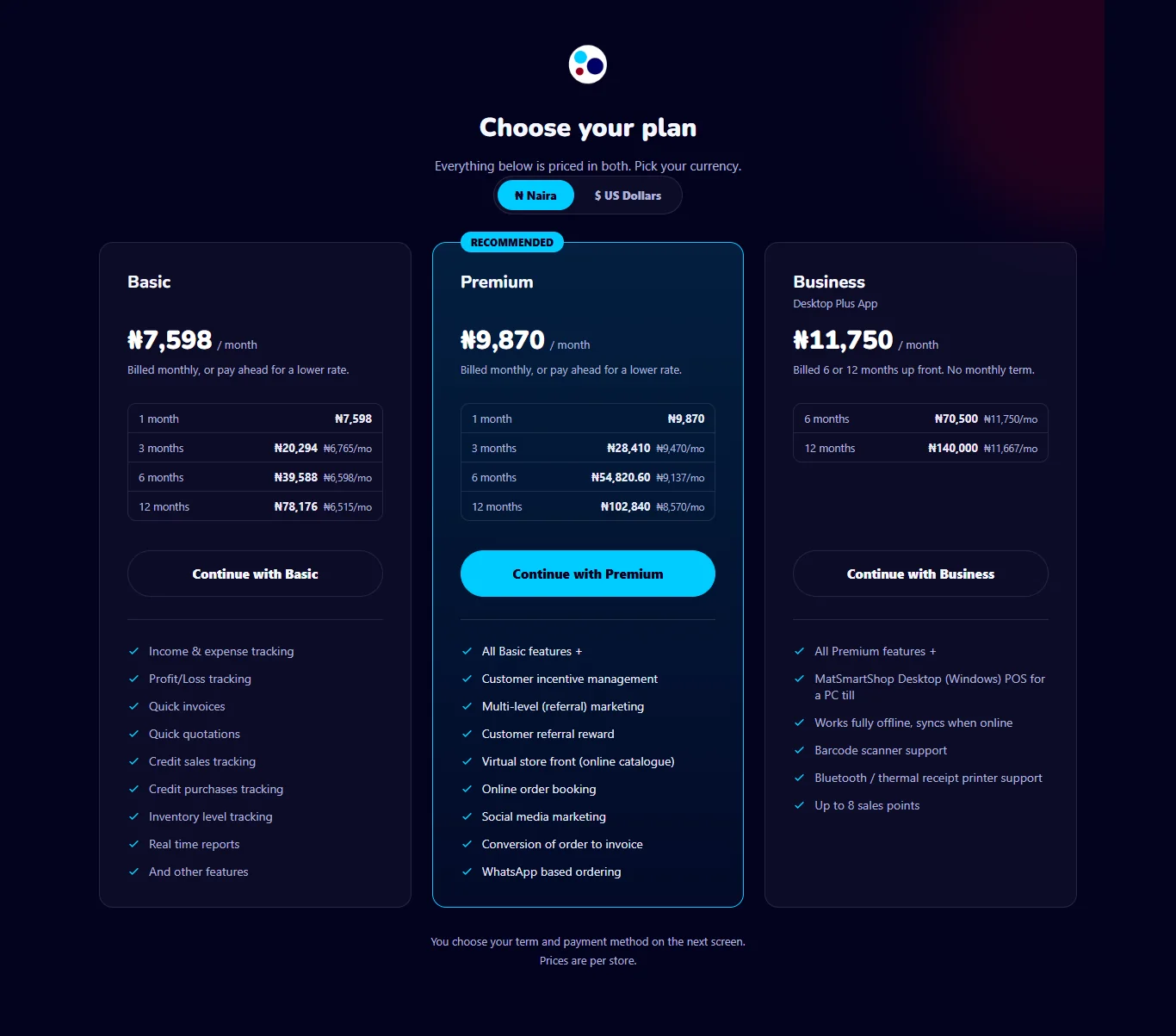
- Pick your currency (₦ Naira or $ US Dollars).
- Compare the cards. Each lists the term prices and the per-month equivalent for paying ahead.
- Continue with Basic / Premium / Business. On the next screen choose the term and payment method.
- Pay in the secure checkout. Your plan starts as soon as payment is confirmed; the payment appears in Profile Settings → Subscriptions with its reference, promo code (if any), status, duration and amount.
8.1 Upgrading Basic to Premium mid-term
If you're on Basic with time left, the Premium upgrade charges the Premium price minus the unused part of what you paid for Basic — you don't pay twice for the same days. The upgrade is offered only while your latest subscription is an unexpired Basic one.
8.2 When a subscription ends
When paid time runs out you're offered two paths: renew, or Continue on the Freemium plan — no subscription. The emailed reminder's Reactivate my shop button leads to the same choice.
9. Moving to the Freemium plan
You can move from a paid plan to Freemium at any time.
- Your free monthly units start on the 1st of next month, not today. Until then the app keeps working, but metered actions need units you have bought or earned by referring another business. Everyday work that costs nothing is unaffected.
- Exception: if your last paid plan ended 90 days or more ago, you're treated as a returning merchant and this month's units are credited straight away.
- If you're already on Freemium, there's nothing to switch.
10. SMS units are separate
Text messages — Customer Follow-Up reminders, Automatic Messages, storefront item promotions, sale alerts and back-order alerts — are paid with SMS units, which are bought and counted separately from usage units.
- Where to buy: ACCOUNT → SMS Units in the left menu (owner only — staff don't see it), or Store Settings → Buy SMS Unit in Wildfire. Both open the same page: your balance, packs or a typed number of units with the price shown first, and a history of texts sent and units bought.
- Your own sender name: asked for on the same page once your email is verified and you have bought at least ₦5,000 of SMS units in total — on any plan, including the Freemium plan. The phone networks approve it, usually in 1 to 3 working days.
Full details: Merchant Storefront guide, section 12, and Customer Follow-Up guide, section 11.
11. Downloads
Left menu → REPORTS & DATA → Downloads offers Download Desktop Version — the Windows desktop till, as a ZIP file.
- Download and unzip it on the till PC.
- Run the installer; sign in with your MAT Smart Shop email and password.
- The desktop till is part of the Business plan. See the Desktop guide for setup, sales points and printing.
The Android app comes from the Google Play Store — search "MAT Smart Shop".
12. The Knowledge Base and Ask SmartShop
12.1 Knowledge Base
Left menu → HELP → Knowledge Base: short illustrated guides, grouped into Getting started, Sales, Items, Upload, Follow-up, Storefront, Android, Vendors, Consolidator and Account. Type in Search articles (e.g. "stock", "statement") to jump straight to one.
Good first reads: Your first week on the web app, Tour your Dashboard, Record a purchase without wrecking your costs, Text everyone who owes you money.
12.2 Ask SmartShop
Where your portal shows the Ask SmartShop help assistant, type a question in plain words — "How do I record a credit sale?", "How do I publish items to my online store?" — and it answers from the official guides, with links to the relevant article or video. Start a new conversation clears it. The thumbs buttons tell us whether an answer helped.
The assistant explains how to use MAT Smart Shop. It can't see or change your data — for a problem with your own records, contact support.
13. Getting support
- Search the Knowledge Base, or ask Ask SmartShop.
- Check the "If something looks wrong" list at the end of the relevant manual.
- Contact MAT Smart Shop support. Always include your Store ID (Profile Settings), your sign-in email, the screen you were on, what you expected and what happened — and a screenshot if you can.
14. Quick reference and troubleshooting
| I want to… | Do this |
|---|---|
| See how much usage I have left | ACCOUNT → My Usage |
| Top up | My Usage → Buy usage units |
| Earn free units | ACCOUNT → Invite & Earn → Share on WhatsApp |
| Turn units into subscription days | My Usage → Redeem units |
| Subscribe or renew | ACCOUNT → Renew Subscription |
| See what I've paid | Profile Settings → Subscriptions |
| Get the desktop till | Downloads → Download Desktop Version |
| Learn how to do something | HELP → Knowledge Base |
| Buy SMS units for texts | ACCOUNT → SMS Units |
| Get my shop's name on my texts | ACCOUNT → SMS Units → Sender name → Ask for approval |
If something looks wrong
- An export or PDF asks for usage units. Your monthly units are used up — buy, invite, or upgrade (section 6).
- "Monthly usage is not set up on this account." Your allowance couldn't be read. Contact support with your Store ID.
- My monthly units are 0 after downgrading. Expected until the 1st of next month (section 9).
- I paid but the units haven't appeared. Wait a minute and reopen My Usage. If they're still missing, send support the payment reference from your receipt.
- The Buy button says payments are unavailable. Nothing was charged. Contact support.
- A friend joined but I got nothing. They must register through your link; earnings also arrive in stages.
- I'm on Premium but a paywall appeared. Your subscription may have lapsed — check Profile Settings → Subscriptions.
- Bank & Cash asks for units though I have monthly units left. On Freemium, Bank & Cash uses only units you bought or earned. Buy a few, or invite a shop.
- I can't see SMS Units in the menu. Only the owner sees it. Ask the owner, or buy from Wildfire → Store Settings → Buy SMS Unit if you have access there.